Building a computer from scratch has been something I’ve been wanting to do for quite a while. Back in high school, I knew that the expenses of building a high-performance computer was more cost-effective than buying a pre-built one, such as Alienware. However, I didn’t know at the time how it was done or where to even start.
Now that I’ve been learning more about the Information Technology domain (software engineering, Machine Learning, Cyber Security, etc), I figured it was about time I try my hand at assembling one myself. So, for Christmas, I decided to set about building a computer for my wife as a gift.
First, I had to set about doing some research. I looked at various resources, including these articles from TechRadar, Wired, and DigitalTrends which helped explain some of the step-by-step processes I’d have to do once I had all the parts. I then reviewed recommended parts to purchase by consulting Newegg and PCGamer as well as PassMark (for video card benchmarks).
Function drives specifications which determines cost.
When deciding what parts to buy (or really, whether you should even build vs. buying pre-built), determine what functionality the computer will need. Function drives specifications which determines cost. For most people, buying a pre-built computer will work; computer manufacturers are able to buy parts at wholesale cost and then sell their completed machines at a lower price. These machines will be able to perform your day-to-day emails, word processing, and other administrative functions. High-end consumer desktop computers, often marketed as ‘gaming PCs’ or the like, are where an individual can save money by building as opposed to purchasing pre-built.
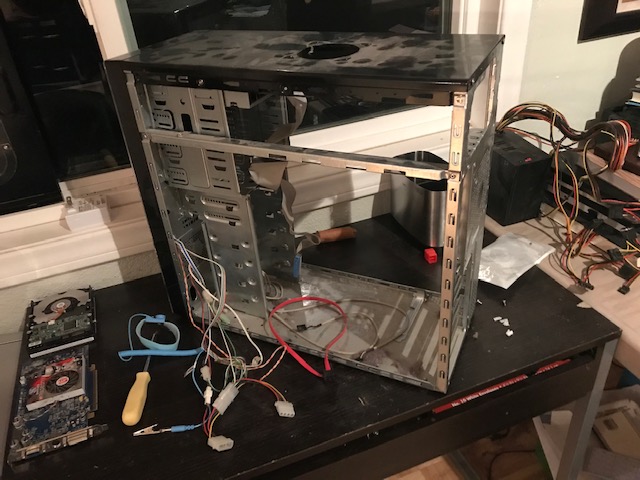
My wife had a desktop PC that had sat in storage for years unattended, so I opted to clean it up and use the exterior case for the frame. Below are the list of parts I ended up purchasing:
- Motherboard (ASUS ROG B450-F Motherboard)
- Solid State Drive [SSD] (WD Blue 2TB)
- CPU (AMD Ryzen 5 3600, 6 Core, 12 Thread)
- Video/Graphics Card (GeForce 1660 Ti)
- Power Supply (Corsair RM750x)
- Random Access Memory [RAM] (Corsair Vengeance LPX 16GB)
- Peripherals (mouse, keyboard, monitor, cables)
I also ended up buying some some additional equipment, including a USB drive to serve as a boot media device when installing Windows, a replacement for one of the front panels for more USB 3.0 slots, some thermal paste, an anti-static wristband, and an ethernet network switch to afford the additional connection into the home network (since the new computer would be a ways away from the home router).
| Before Installing CPU | After Installing CPU |
|---|---|
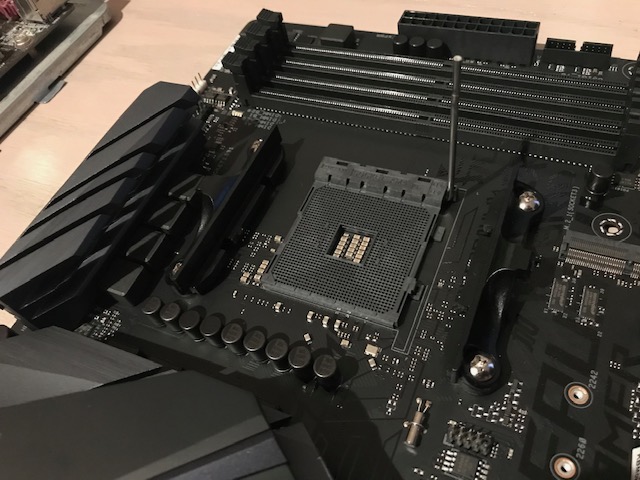 | 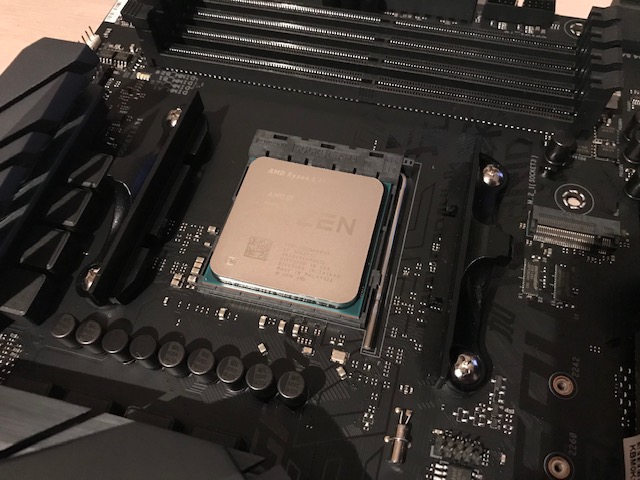 |
After the research and parts were purchase, I set about deconstructing my wife’s old computer and installing the new parts. The actual physical build was not that difficult, especially with the installation guidance videos posted by Paul’s Hardware. It took just a few hours to set everything and plug in the appropriate cables. After that, I plugged-in the USB with the Windows boot media and got it installed.
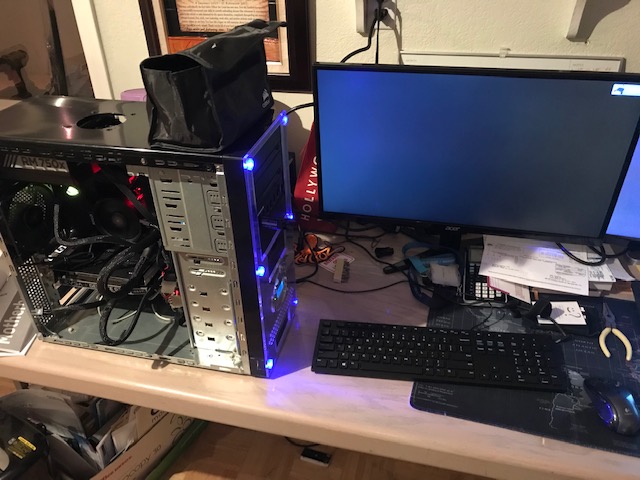
Building the computer was a great experience. I hadn’t ever done it before and was really concerned that something along the way would break or malfunction. I was prepared to call in some help to fix something that I would inevitably err in; to my surprise, everything worked (and quite smoothly!).